> For the complete documentation index, see [llms.txt](https://docs.gpmautomate.com/llms.txt). Markdown versions of documentation pages are available by appending `.md` to page URLs; this page is available as [Markdown](https://docs.gpmautomate.com/automate-en/action-guide/google-service/write-google-sheet.md).
# Write google sheet
Write data to Google Sheets
Write google sheet is an action that instructs the automation script to connect to your Google Drive account to overwrite or insert new content into a specific cell in an online Google Sheets file.
🎥 Watch the tutorial video: [Here](https://youtu.be/kiBj-3YuRPI).
#### Configuration parameters:
* Credential file: Select the Google account authentication file (the `.json` file). This is a security certificate that authorizes GPM Automate to connect, authenticate, and execute the command to write content to your Google Sheet.
* *Instructions to create the file*: Watch the tutorial video here:
* File ID: The unique identifier of the Google Sheets file to interact with (taken from the string located between `/d/` and `/edit` in the file's URL).
* Sheet ID: The index number of the sheet to write content (starting from `0` for the first sheet from left to right).
* Column Name or Index: Specify the column position to write data. You can enter a letter (e.g., `A`, `B`, `C`...) or enter an index number (e.g., `1` corresponds to column A).
* Row Index: The index number of the row to write data, counted starting from `1`.
* Value: The text, number, or value from a GPM Automate variable that you want to fill into the target cell.
#### Practical example: Automatically update account status after completion
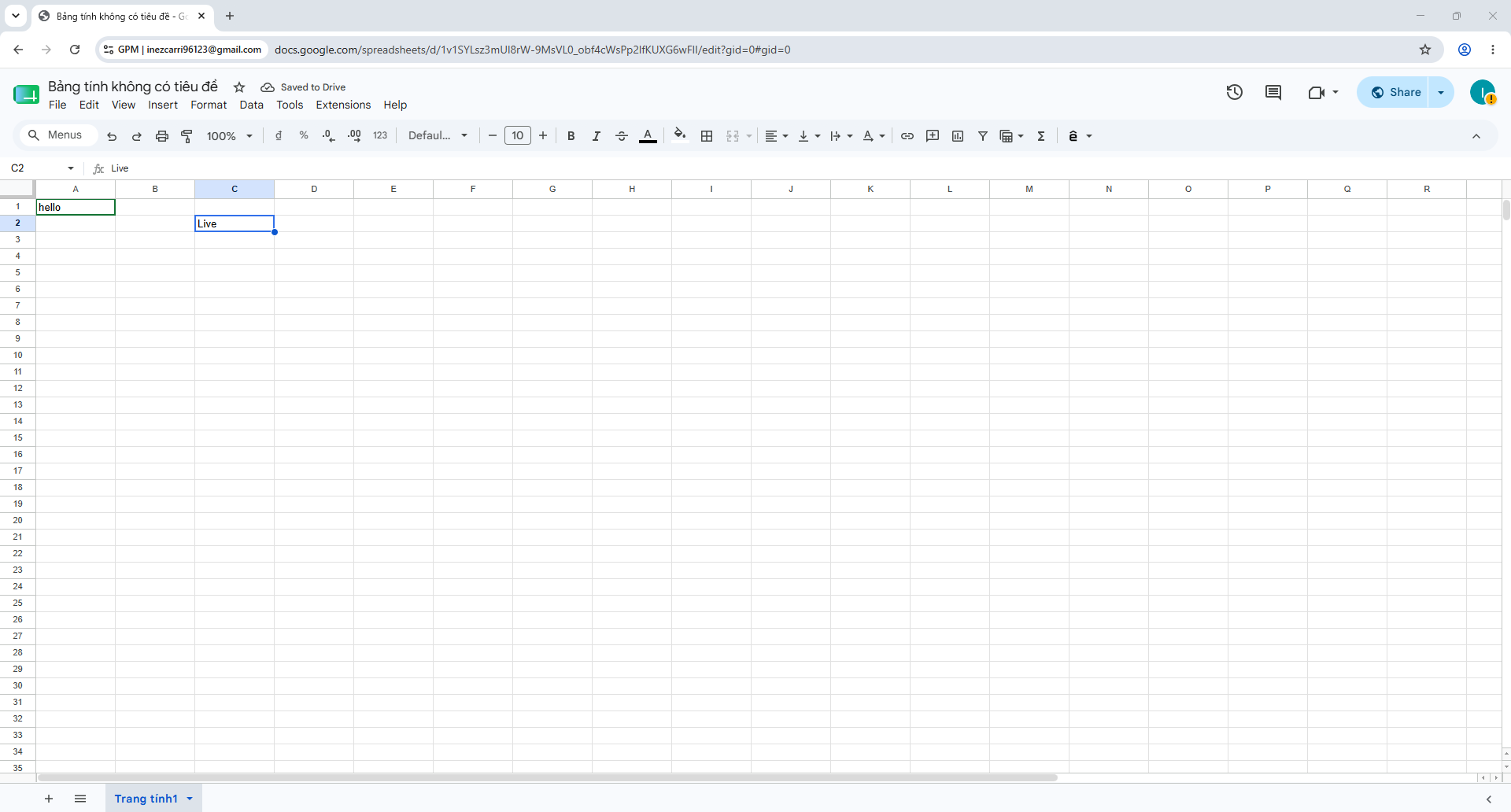
When you are scripting for account nurturing or posting, after a Profile successfully completes a task, you want to write "Live" or "Success" into the status column on Google Sheets for easy tracking:
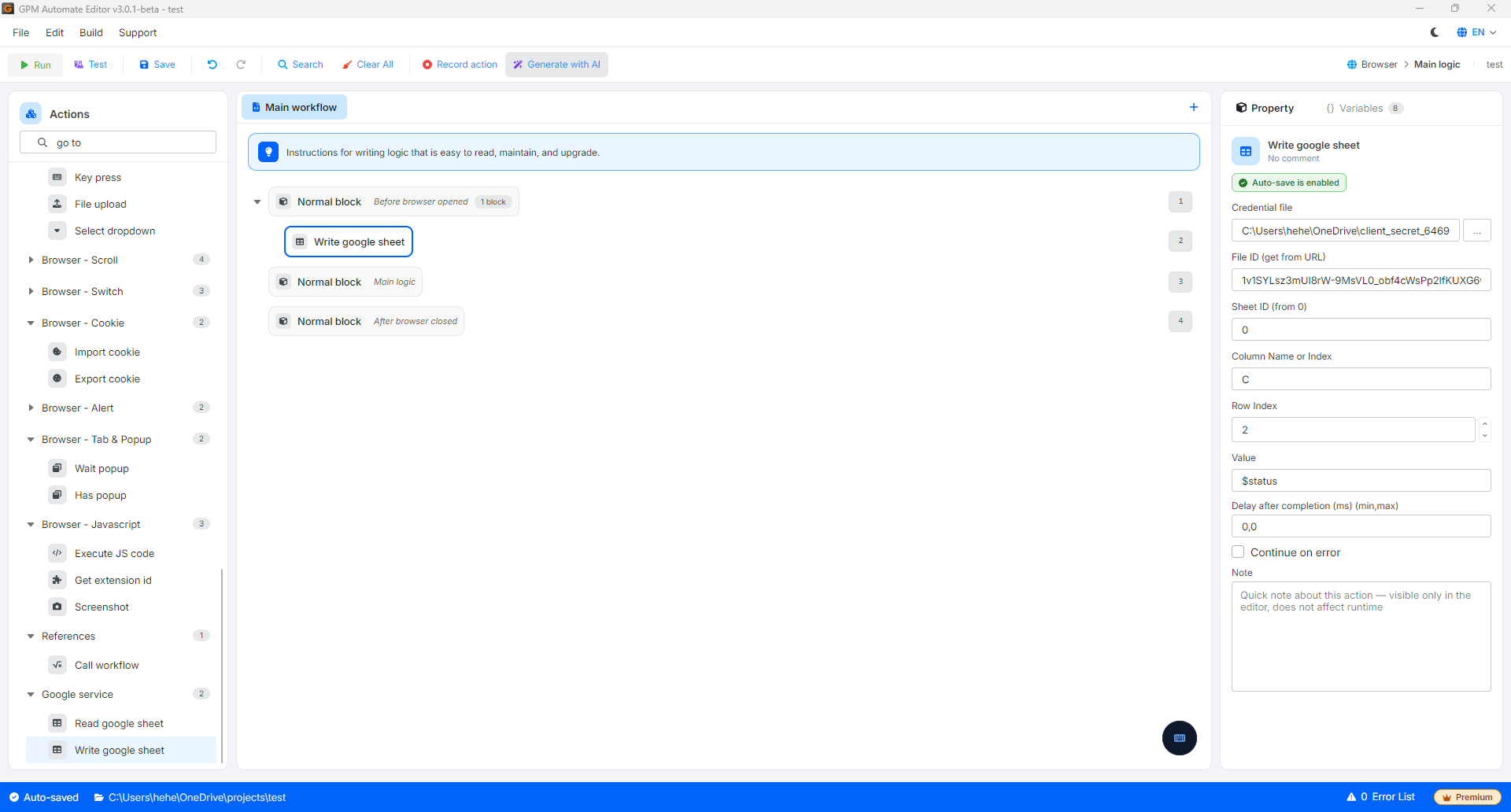
* How to configure to write to cell C2:
* Credential file: Select the path to the `client_secret_....json` file you have configured.
* File ID: Enter your Sheet file ID.
* Sheet ID: `0` (Write in the first sheet).
* Column Name or Index: Enter `C` (or enter `3`).
* Row Index: Enter `2`.
* Value: Enter the word `Live` (or pass the status variable `$status`).
* Result: GPM Automate will immediately sync and fill the word "Live" directly into cell C2 on your online Google Sheet quickly without needing to open the Docs browser.
---
# Agent Instructions
This documentation is published with GitBook. GitBook is the documentation platform designed so that both humans and AI agents can read, navigate, and reason over technical content effectively. Learn more at gitbook.com.
## Querying This Documentation
If you need additional information that is not directly available in this page, you can query the documentation dynamically by asking a question.
Perform an HTTP GET request on the current page URL with the `ask` query parameter, and the optional `goal` query parameter:
```
GET https://docs.gpmautomate.com/automate-en/action-guide/google-service/write-google-sheet.md?ask=&goal=
```
`ask` is the immediate question: it should be specific, self-contained, and written in natural language.
`goal` is optional and describes the broader end goal you are ultimately trying to accomplish on behalf of the user. GitBook uses it to tailor the answer towards what is most useful for that goal.
The response will contain a direct answer to the question and relevant excerpts and sources from the documentation.
Use this mechanism when the answer is not explicitly present in the current page, you need clarification or additional context, or you want to retrieve related documentation sections.