> For the complete documentation index, see [llms.txt](https://docs.gpmautomate.com/llms.txt). Markdown versions of documentation pages are available by appending `.md` to page URLs; this page is available as [Markdown](https://docs.gpmautomate.com/automate-en/action-guide/mail/read-mail-code.md).
# Read mail code
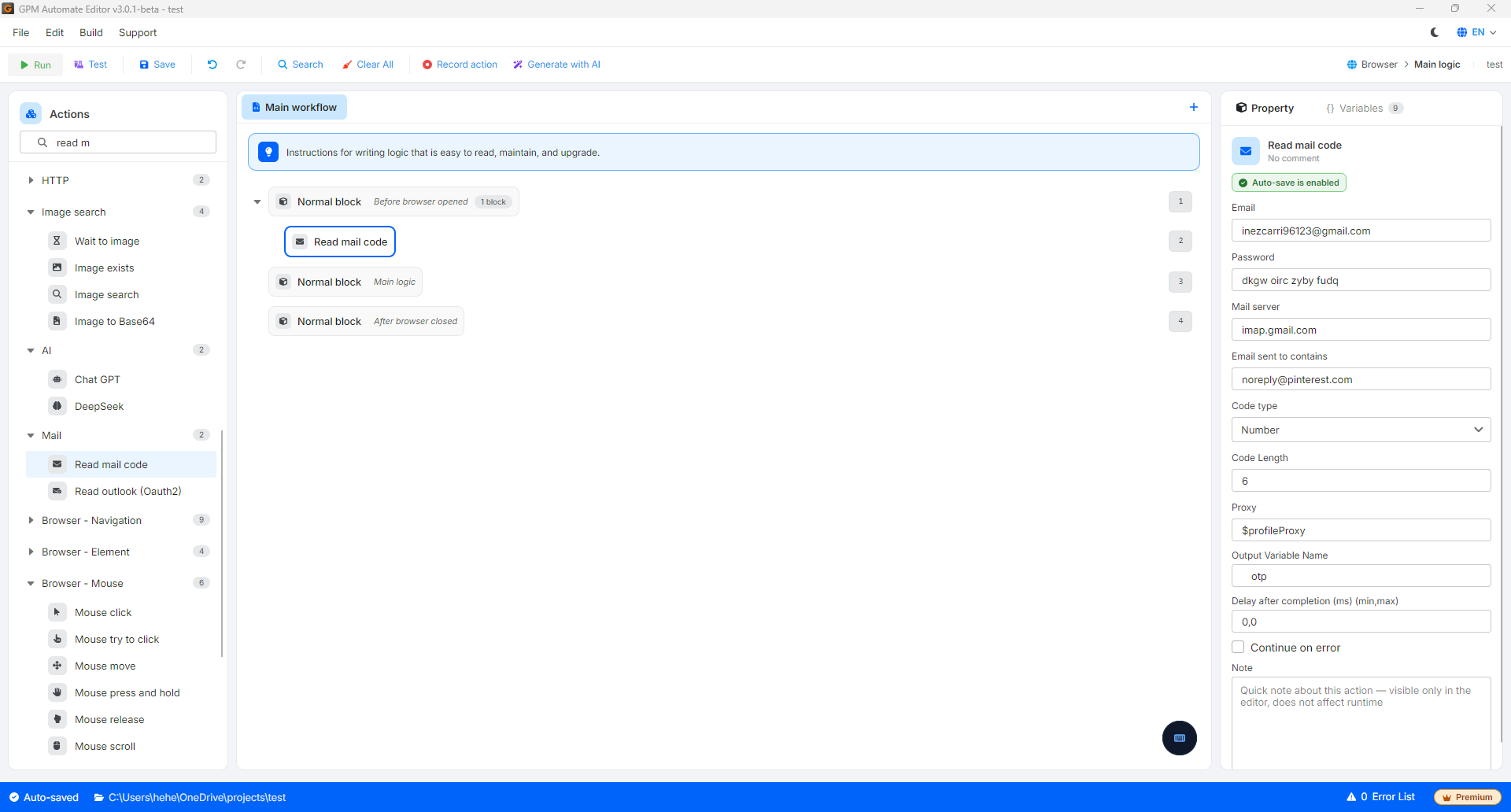
Read mail code is an advanced action that allows the script to automatically log into the email inbox (Gmail, Outlook, Hotmail, Yahoo...) through the secure IMAP connection protocol. The system will automatically scan for the latest emails, search for emails from a specified sender, and extract the verification code (OTP/Code) to fill in on the website without you having to open the email tab for manual operation.
🎥 Watch the tutorial video: [Here](https://youtu.be/c9384x0uWiI).
#### Explanation of configuration parameters:
* Email: Enter the email address to read the verification code (For example: `gpm_user@gmail.com`).
* Password: Enter the connection password.
> ⚠️ Important note: For high-security email accounts like Gmail, you must not enter the main password of the account here but must enter the App Password created specifically in the security settings of that email (Instructions for obtaining it are in the section below).
* Mail server: The IMAP server address of the email service provider.
* *For Gmail*: `imap.gmail.com`
* *For Outlook/Hotmail*: `outlook.office365.com`
* Email sent to contains: A keyword or email address that contains that phrase (Used to filter the correct email to find, for example: `noreply@pinterest.com` or `no-reply@pinterest`).
* Proxy: Optional IP configuration for logging into the mail server, helping to avoid being blocked by service providers (like Google, Microsoft) when operating a large number of accounts. You can set it up in 3 ways:
* Leave blank: The system will use the original network (real machine IP) to perform the connection and retrieve the code.
* Enter variable `$profileProxy`: The script will automatically use the Proxy package assigned specifically for the current GPM Profile.
* Manually enter proxy: Directly enter the Proxy string in a specific format (For example: `ip:port` or `ip:port:user:pass`) that you want to assign specifically for this action.
* Code type: The format structure of the OTP code to be extracted. The system supports 3 options:
1. Number: Use when the OTP code sent is entirely a series of consecutive numbers (For example: `475997`).
* *Code Length*: The exact length of the number sequence to extract (For example, if the code consists of 6 digits, enter `6`).
2. Text: Use when the OTP code contains both letters and numbers interspersed, or is hidden deep within an HTML structure tag of the email.
* *Code element xpath*: The XPath path directly to the tag containing the OTP code within the email content (For example: `//h1` or `//span[@id="otp"]`).
* *Code element attribute*: Enter the keyword `text` if the OTP code is directly between two tags (For example: `
ABCDEF
` ➔ Enter `text`). Or enter the *Attribute name* if the OTP code is hidden in the attribute of the tag (For example: `` ➔ Enter `code`).
3. Full: An advanced option that allows the system to extract the entire source code of the text/HTML of the entire returned email into a variable. From there, you can pass this variable through the Regex or Execute JS code actions to write a flexible extraction algorithm as desired (Suitable for emails with super complex OTP structures).
* Output variable: The variable name that stores the verification code string (or the entire content of the email) after successful retrieval to pass into the next input action.
#### Instructions on how to Enable Two-Step Verification (2FA) and Obtain App Password for Gmail
For security, Google blocks all third-party applications from directly connecting to the inbox using the original password. You must follow the procedure below to grant GPM Automate access to IMAP:
**1. Enable Two-Step Verification (2FA) for your Google account**
1. Log into your Google account, go to the account management page at: .
2. In the left menu, select Security.
3. Scroll down to the *"How you sign in to Google"* section, find the Two-Step Verification option. If it is in the *Off* state, click on it and follow the instructions (linking a phone number or authentication app) to turn it on.
**2. Create and obtain App Password**
1. After successfully enabling Two-Step Verification, go to the App password section here: .
2. In the App name box, enter any name to remember (For example: `GPM_Automate`) and then click Create.
3. A small window will pop up containing a 16-character yellow code (For example: `abcd efgh ijkl mnop`).
4. You should copy all 16 characters (remove any spaces if present) and paste them directly into the Password box in the configuration of the *Read mail code* action of GPM Automate.
*(Note: For Outlook/Hotmail accounts, you perform a similar process in Settings > Security > Advanced security options > App passwords to obtain the corresponding 16-character password string).*
---
# Agent Instructions
This documentation is published with GitBook. GitBook is the documentation platform designed so that both humans and AI agents can read, navigate, and reason over technical content effectively. Learn more at gitbook.com.
## Querying This Documentation
If you need additional information that is not directly available in this page, you can query the documentation by asking a question.
Perform an HTTP GET request on the following URL with the `ask` and `goal` query parameters:
```
GET https://docs.gpmautomate.com/automate-en/action-guide/mail/read-mail-code.md?ask=&goal=
```
`ask` is the immediate question: it should be specific, self-contained, and written in natural language.
`goal` is what the user is ultimately trying to achieve, the reason they need the answer. Sharing it helps GitBook give you a better, more relevant answer. A goal is most helpful when it describes the outcome the user wants rather than restating the question. For example, with `ask=how do I create an API token`, a goal like `automate deployments from our CI pipeline` lets GitBook tailor the answer to that use case.
The response will contain a direct answer to the question and relevant excerpts and sources from the documentation.
Use this mechanism when the answer is not explicitly present in the current page, you need clarification or additional context, or you want to retrieve related documentation sections.