> For the complete documentation index, see [llms.txt](https://docs.gpmautomate.com/llms.txt). Markdown versions of documentation pages are available by appending `.md` to page URLs; this page is available as [Markdown](https://docs.gpmautomate.com/automate-en/action-guide/mouse/mouse-click.md).
# Mouse click
Click the mouse on an element.
Mouse click is the action of controlling the mouse pointer to perform a click command at a specific location on the screen. To optimize for different interface interaction scenarios, GPM Automate provides you with 3 flexible setup options:
🎥 Watch the tutorial video: [Here](https://youtu.be/kQZWs1I76Zo).
#### 3 types of mouse click options compatible with all interfaces
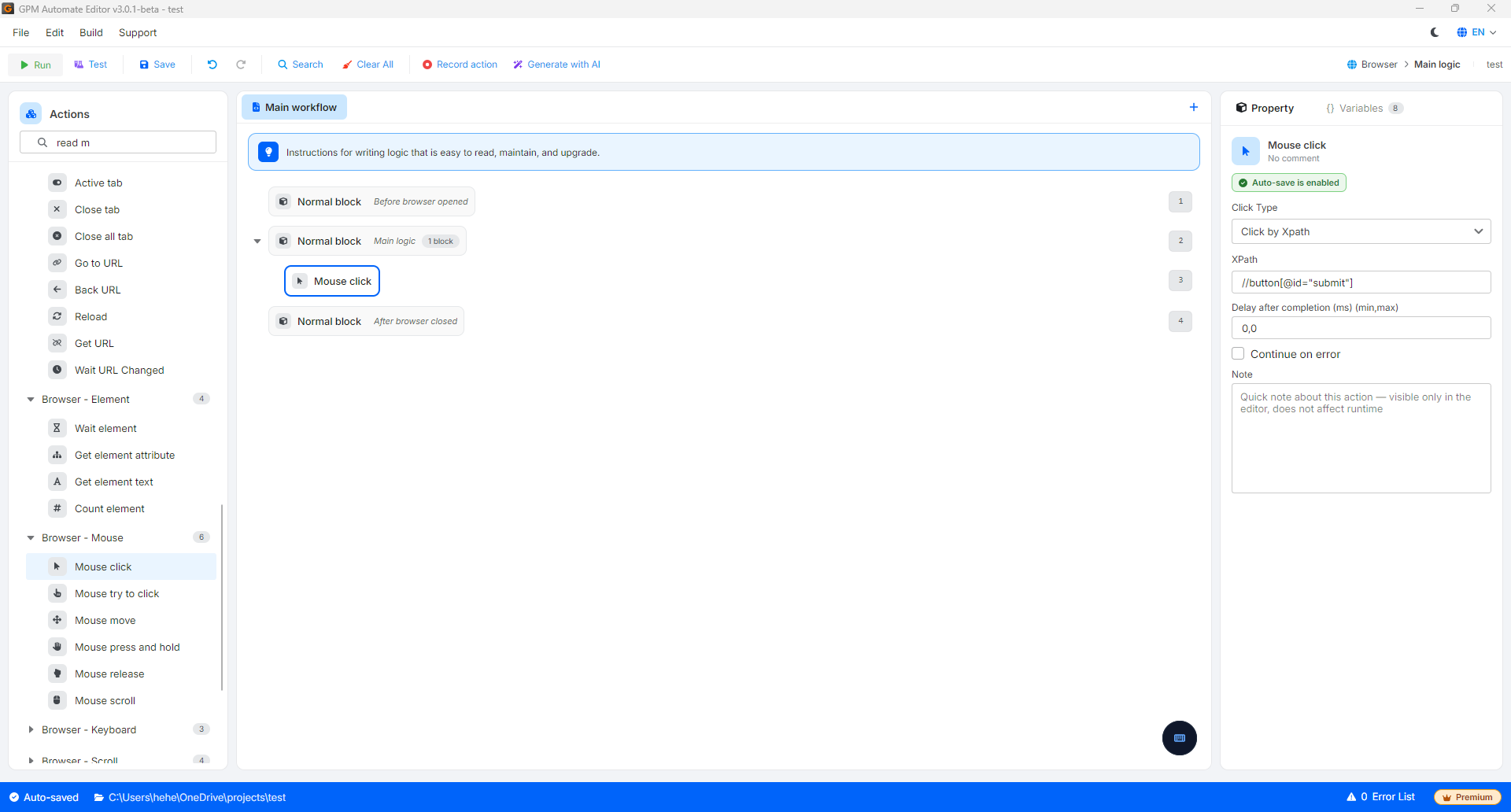
**1. Click based on XPath (Default for Web interfaces)**
* How it works: You enter the XPath of the element on the webpage (e.g., `//button[@id="submit"]`). The system will automatically search for this HTML tag, calculate its position in the browser, and move the mouse to click accurately.
* Application: Used for standard webpage structures, fixed buttons with clear source code tags.
**2. Click based on the current position of the mouse pointer**
* How it works: The system does not move the mouse anywhere but will perform the click command right at the point where the mouse pointer is currently stationary from the previous action (such as after the Mouse move or Random scroll command).
* Application: Used when you have a complex series of mouse movement actions beforehand and just need to issue a click command to activate.
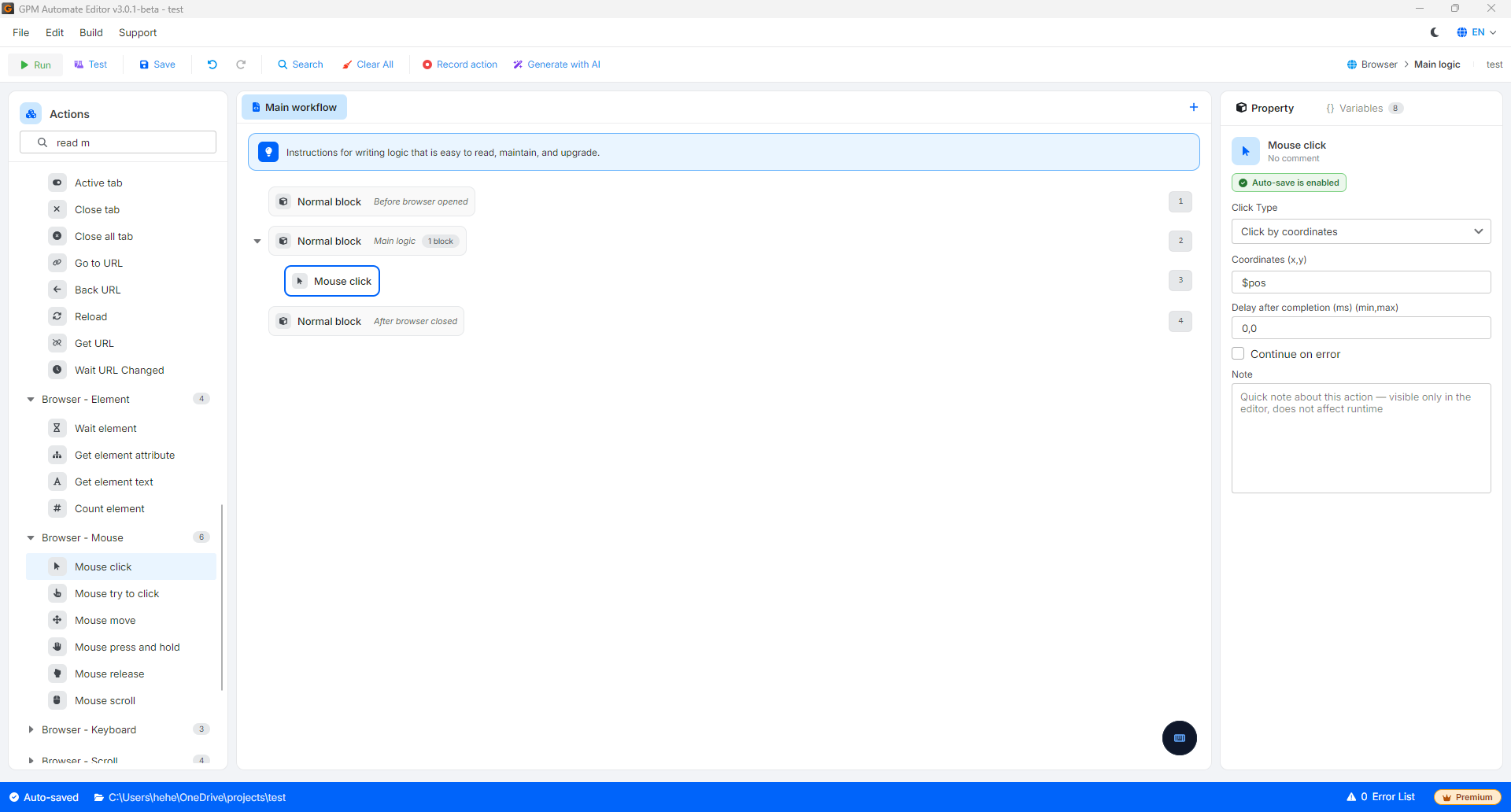
**3. Click based on coordinates (Perfectly combined with Image search)**
* How it works: You directly enter the pixel position along the horizontal `X` and vertical `Y` axes (Pixel) on the screen for the mouse to jump and click.
* Optimal combination: This click type is often combined with the Image search action. When *Image search* finds the target image, it will return a combined coordinate variable (for example, the default variable name is `pos`) as a text string containing both the X and Y axes separated by a comma: `900,800`.
* Configuration method: In the coordinate input box of the *Mouse click* action, you just need to pass the combined variable `$pos` directly. GPM Automate's intelligent system will automatically parse this syntax `900,800` to move the mouse to coordinates x=900, y=800 to click directly on the target.
* Application: Used to click on elements within a Canvas (game), buttons hidden deep within secure Iframes, or interact with components that do not have a fixed XPath tag.
---
# Agent Instructions
This documentation is published with GitBook. GitBook is the documentation platform designed so that both humans and AI agents can read, navigate, and reason over technical content effectively. Learn more at gitbook.com.
## Querying This Documentation
If you need additional information that is not directly available in this page, you can query the documentation by asking a question.
Perform an HTTP GET request on the following URL with the `ask` and `goal` query parameters:
```
GET https://docs.gpmautomate.com/automate-en/action-guide/mouse/mouse-click.md?ask=&goal=
```
`ask` is the immediate question: it should be specific, self-contained, and written in natural language.
`goal` is what the user is ultimately trying to achieve, the reason they need the answer. Sharing it helps GitBook give you a better, more relevant answer. A goal is most helpful when it describes the outcome the user wants rather than restating the question. For example, with `ask=how do I create an API token`, a goal like `automate deployments from our CI pipeline` lets GitBook tailor the answer to that use case.
The response will contain a direct answer to the question and relevant excerpts and sources from the documentation.
Use this mechanism when the answer is not explicitly present in the current page, you need clarification or additional context, or you want to retrieve related documentation sections.