> For the complete documentation index, see [llms.txt](https://docs.gpmautomate.com/llms.txt). Markdown versions of documentation pages are available by appending `.md` to page URLs; this page is available as [Markdown](https://docs.gpmautomate.com/automate-en/action-guide/text-and-number/regex.md).
# Regex
Regex (Regular Expression) is like a magnifying glass that helps you precisely find a piece of text hidden within a large document, or like a filter that allows you to keep the exact data format you need (such as phone numbers, emails, OTP codes) while discarding unnecessary surrounding text.
🎥 Watch the tutorial video: [Here](https://youtu.be/nlEQsaxawt4).
#### Configuration parameters:
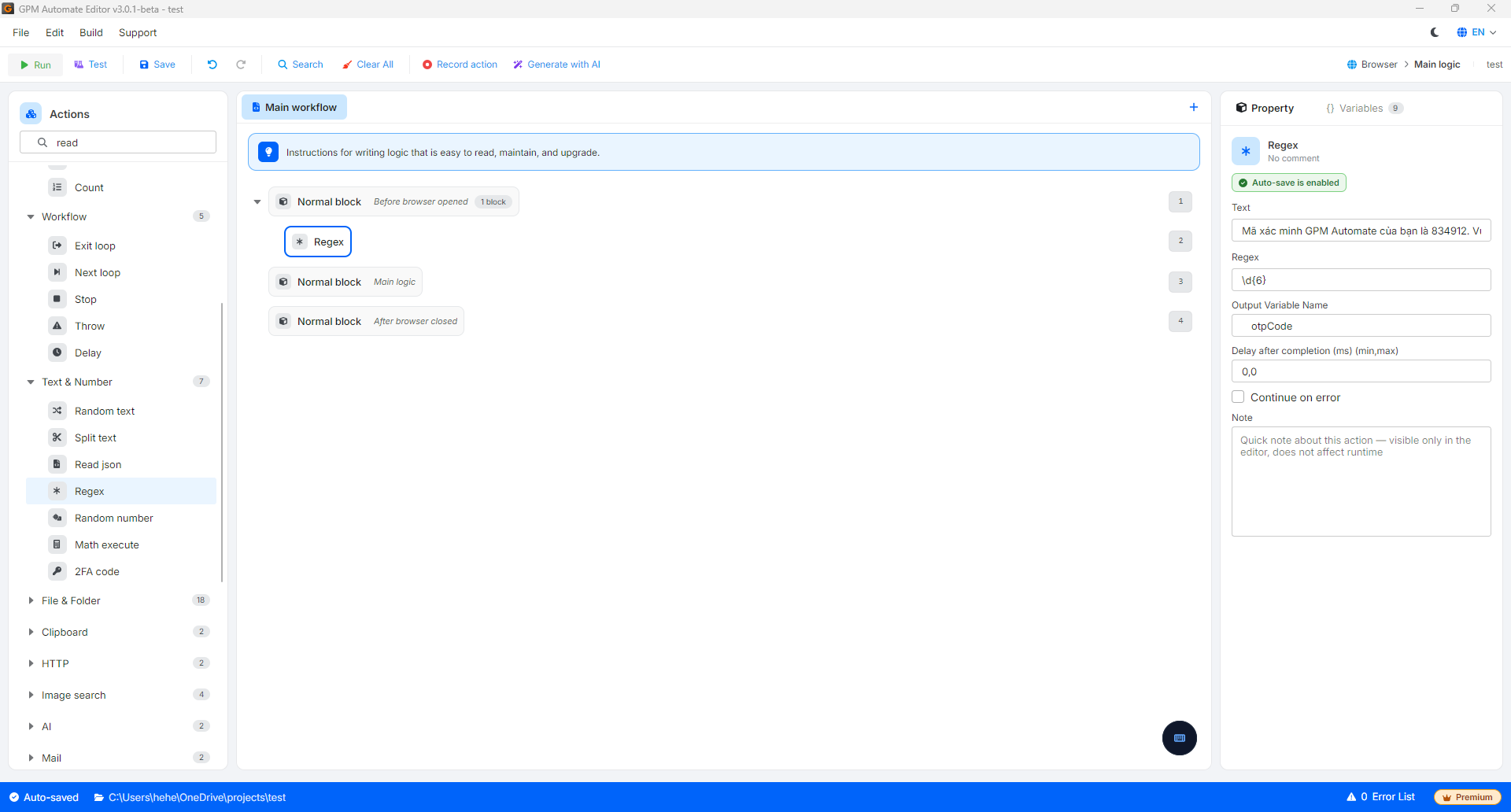
* Text: The raw input text that needs data filtering (or a variable containing the text).
* Regex: The filter code/syntax used to shape the structure of the string to be extracted.
* Output variable: The name of the variable that stores the result after successful filtering.
#### Practical example: Extracting OTP code from Email content
When you use the action to read emails, the system will return the entire text content of a lengthy email. Your task is to extract the correct 6-digit OTP code contained within.
Suppose the input Text received is:
> "Your GPM Automate verification code is 834912. Please do not share this code with anyone, the code is valid for 5 minutes."
To filter out the 6-digit OTP, you configure the Regex action as follows:
* Text: Pass in the above text (or a variable containing the email content).
* Regex: Enter `\d{6}` *(this is the regex syntax representing 6 consecutive numeric characters)*.
* Output variable: Enter the name of the variable to store (For example: `$otpCode`).
Result: The "filter" Regex will scan through the text, ignoring all Vietnamese characters and accurately retaining the string `834912` to assign to the variable `$otpCode`.
> 💡 Tip: Does the Regex syntax seem complicated and hard to remember? Don't worry, you don't need to memorize it. Just open AI tools (like ChatGPT, DeepSeek, Gemini...) and ask directly in natural language, for example: *"Write me a regex to filter out 6 consecutive digits"* or *"Write regex to get the string between 'Your code is:' and the period"*. AI will generate the exact code for you to simply copy-paste into the configuration box of GPM Automate.
---
# Agent Instructions
This documentation is published with GitBook. GitBook is the documentation platform designed so that both humans and AI agents can read, navigate, and reason over technical content effectively. Learn more at gitbook.com.
## Querying This Documentation
If you need additional information that is not directly available in this page, you can query the documentation by asking a question.
Perform an HTTP GET request on the following URL with the `ask` and `goal` query parameters:
```
GET https://docs.gpmautomate.com/automate-en/action-guide/text-and-number/regex.md?ask=&goal=
```
`ask` is the immediate question: it should be specific, self-contained, and written in natural language.
`goal` is what the user is ultimately trying to achieve, the reason they need the answer. Sharing it helps GitBook give you a better, more relevant answer. A goal is most helpful when it describes the outcome the user wants rather than restating the question. For example, with `ask=how do I create an API token`, a goal like `automate deployments from our CI pipeline` lets GitBook tailor the answer to that use case.
The response will contain a direct answer to the question and relevant excerpts and sources from the documentation.
Use this mechanism when the answer is not explicitly present in the current page, you need clarification or additional context, or you want to retrieve related documentation sections.