> For the complete documentation index, see [llms.txt](https://docs.gpmautomate.com/llms.txt). Markdown versions of documentation pages are available by appending `.md` to page URLs; this page is available as [Markdown](https://docs.gpmautomate.com/automate-en/action-guide/variables/count.md).
# Count
Count is an action used to count the number of elements in a one-dimensional array (or a data list) and return a numeric value. This action is very useful when you need to check the size of data before processing or set limits for loops.
🎥 Watch the tutorial video: [Here](https://youtu.be/nlEQsaxawt4).
Common practical application cases include:
#### 1. Count the number of lines in a text file
When you need to know how many lines a text file (containing account lists, proxies, articles...) has in total:
* How to do it: Use the action File read all lines to read all lines in the file into a variable list, then use the action Count to count that list. The returned value is the total number of lines in the file.
#### Practical example: Count the number of Facebook links in the file `D:\2.txt`
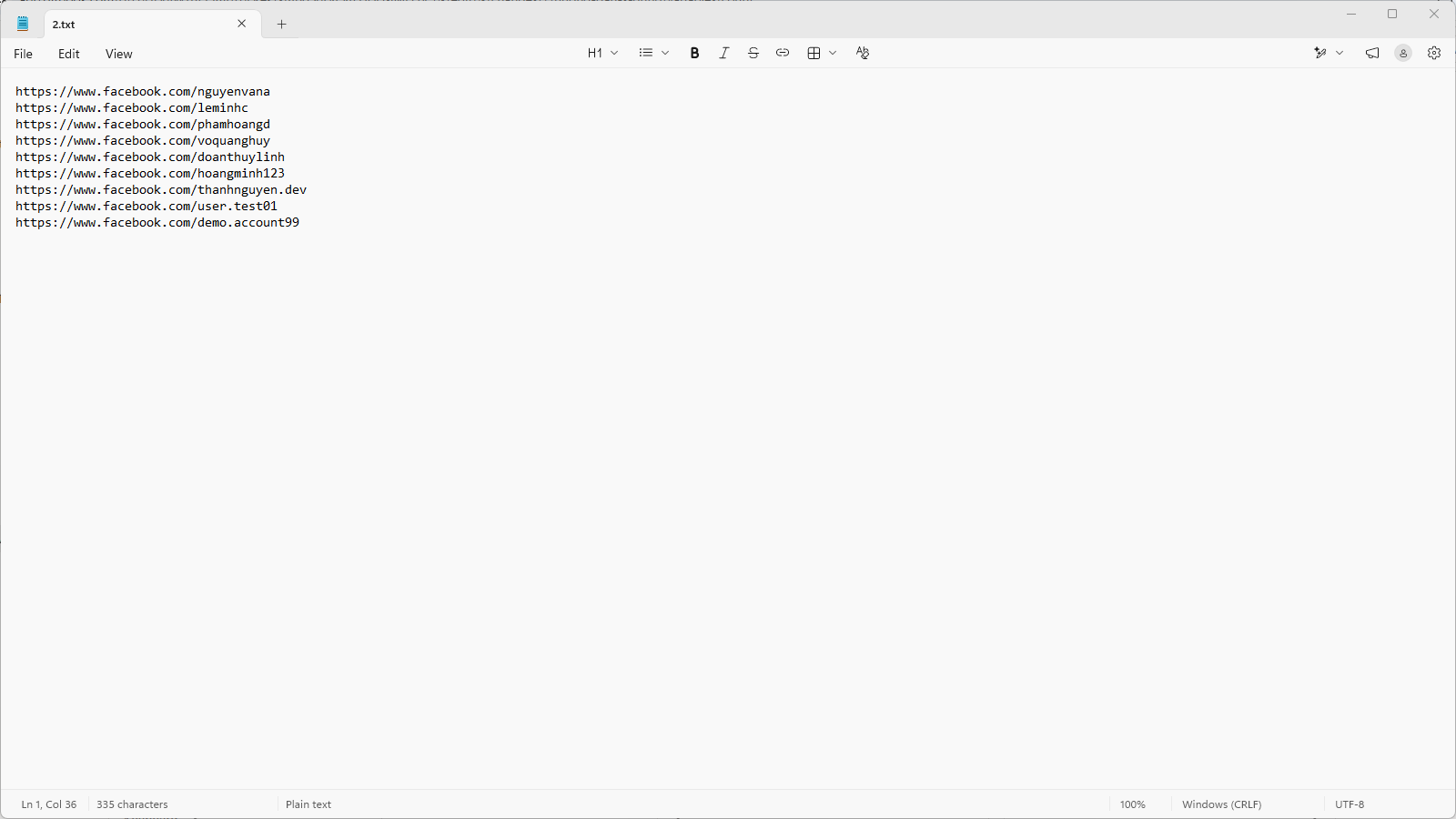
Suppose you have a file storing a list of Facebook profile links at the path `D:\2.txt` with content consisting of 9 lines as follows:
```
https://www.facebook.com/nguyenvana
https://www.facebook.com/leminhc
...
https://www.facebook.com/demo.account99
```
To count the total number of lines and retrieve each link in this file, the script will be configured in 2 steps:
* Step 1: Use the action File read all lines to read the file `D:\2.txt`. The returned result will be stored in an array (list) named `$content`. At this point, the system automatically understands:
* `$content[0]` = `"https://www.facebook.com/nguyenvana"` (Line 1)
* `$content[1]` = `"https://www.facebook.com/leminhc"` (Line 2)
* ...
* `$content[8]` = `"https://www.facebook.com/demo.account99"` (Line 9)
* Step 2: Use the action Count passing in the array `$content` just read, and name the output variable as `$lineCount`.
After running, the variable `$lineCount` will receive the value of `9`. You can immediately use this `$lineCount` variable as the End parameter for the For loop to automatically open each Facebook profile for interaction.
#### 2. Count the number of files in a folder
When you need to check the number of images, videos, or documents present in a folder on your computer:
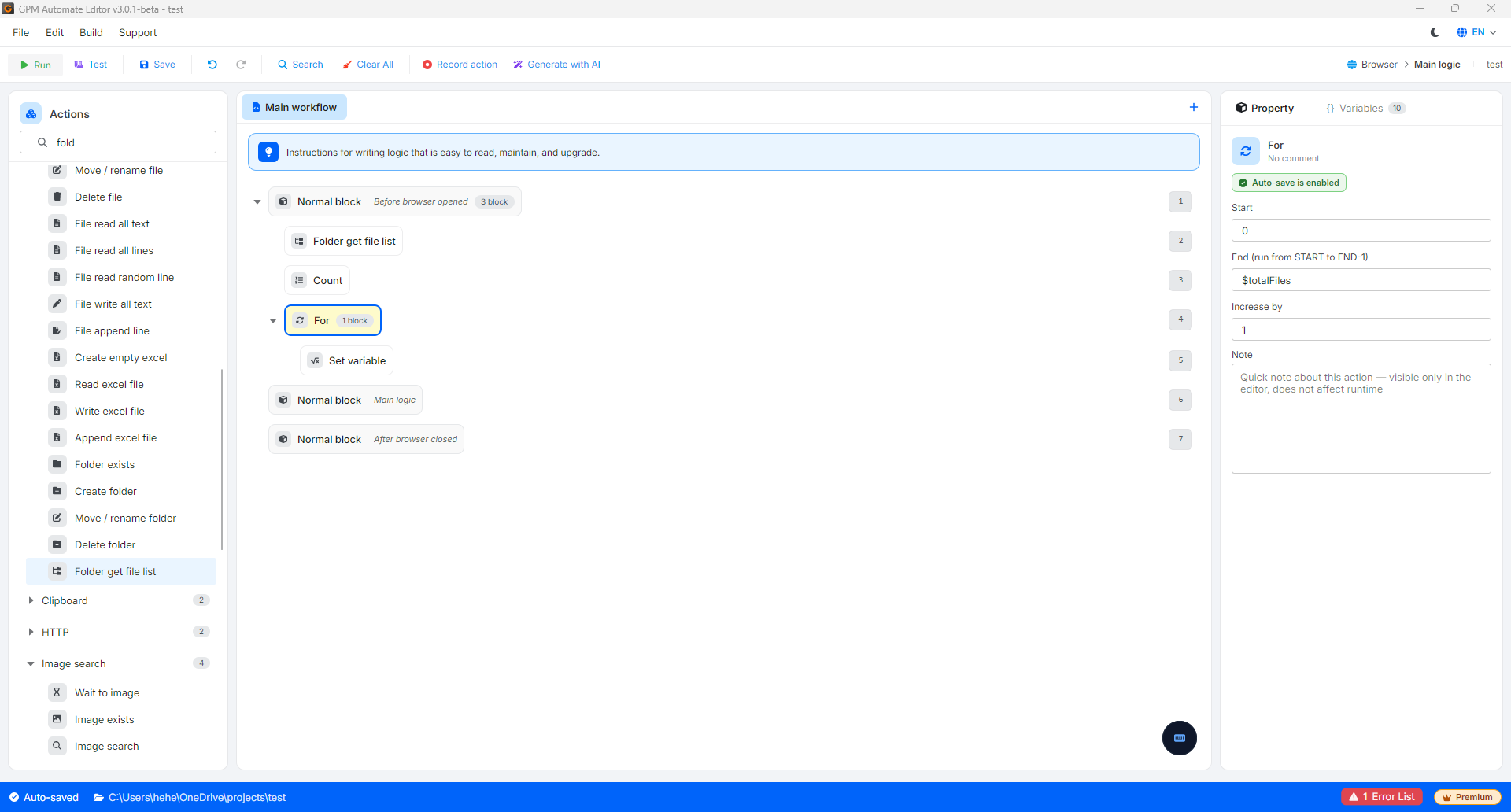
* How to do it: Use the action Folder get file list to retrieve a list of all files, then use the action Count to know exactly how many files are in that folder.
#### Practical example: Count the number of real estate images in the folder `D:\bds\cat bi\`
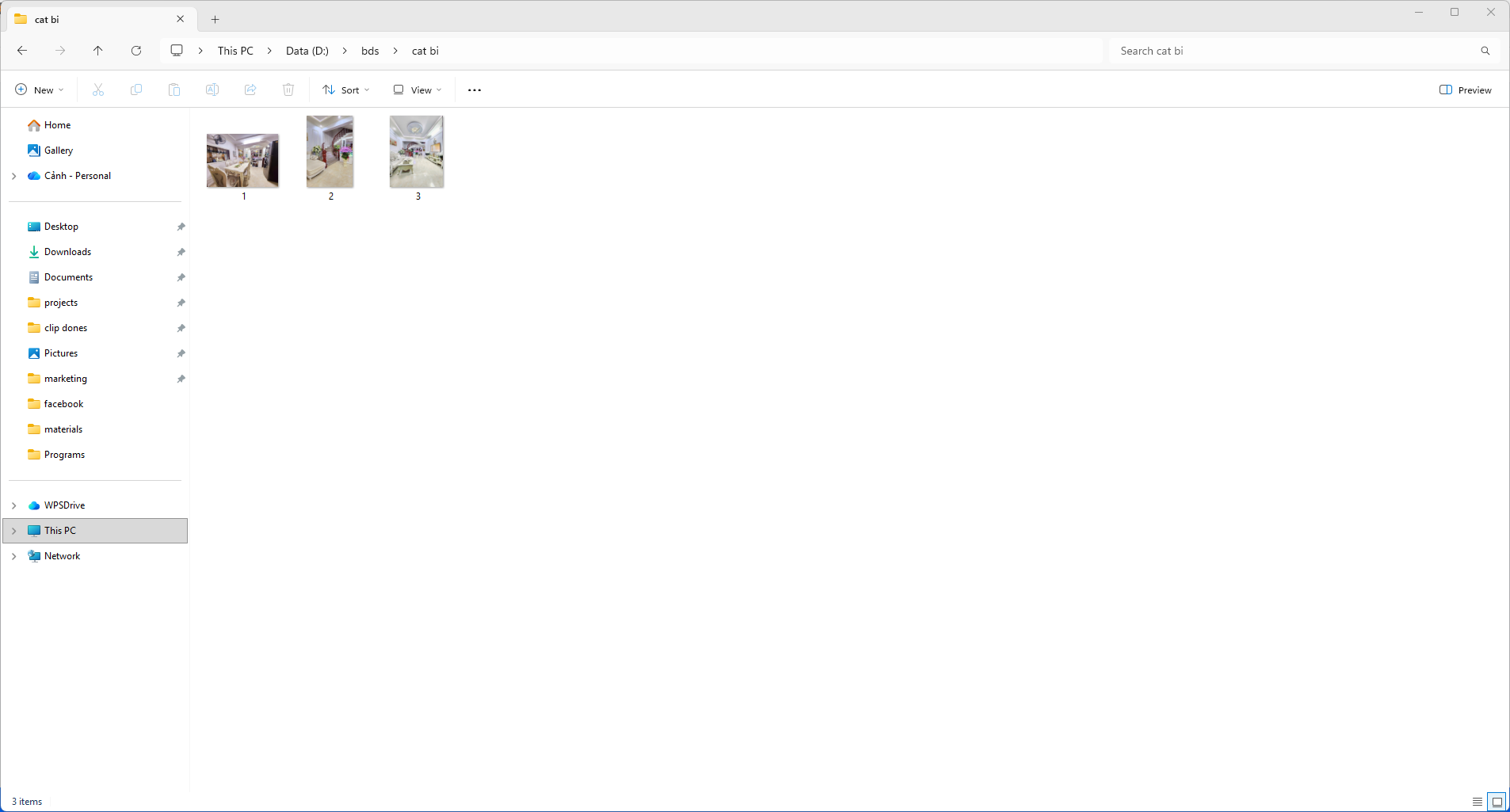
Suppose you have a folder containing images of real estate at the path `D:\bds\cat bi\` consisting of 3 image files named as follows:
* `1.jpg`
* `2.jpg`
* `3.jpg`
To count how many image files are available for automatic posting, the script will be configured in 2 steps:
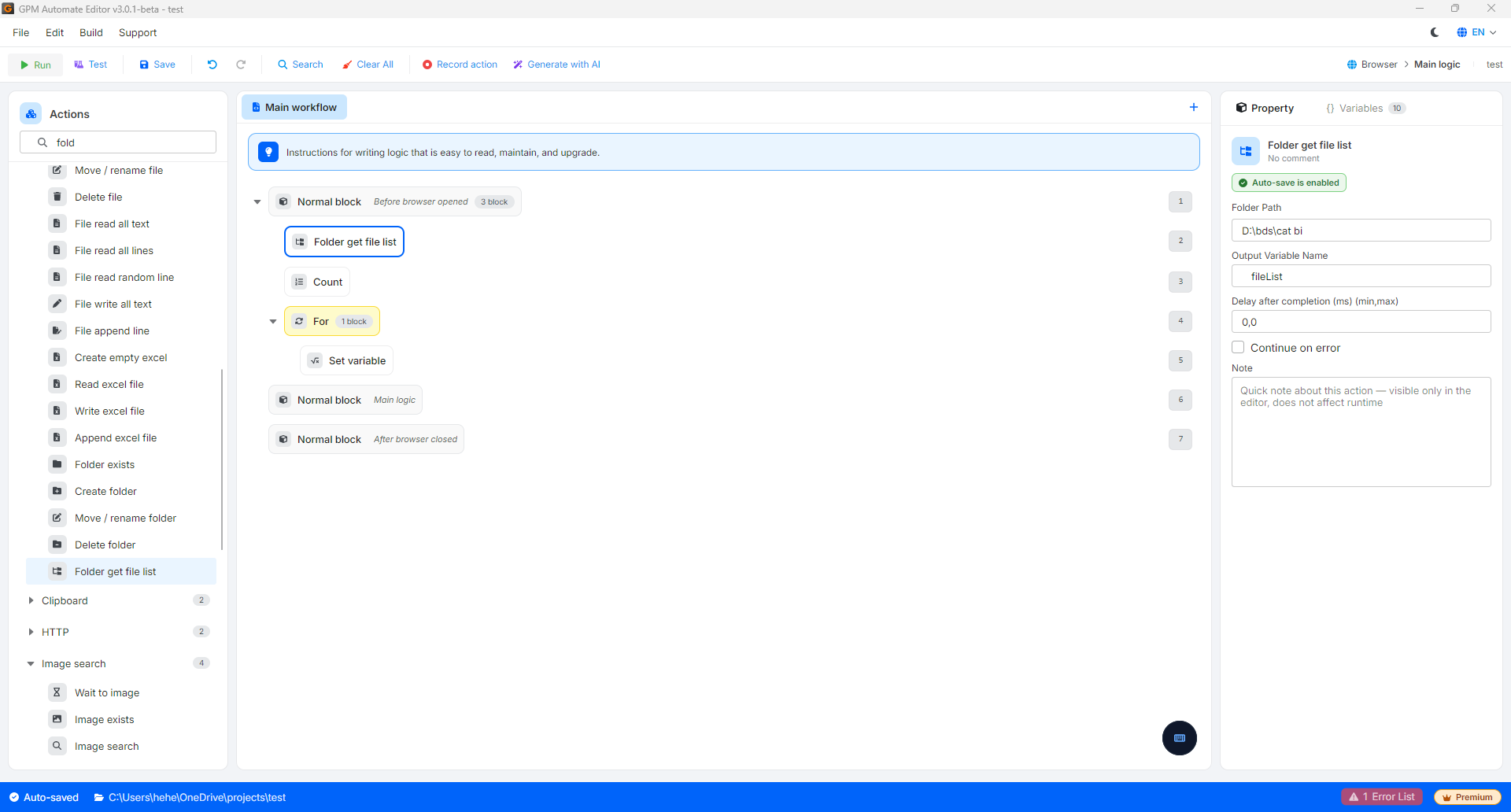
* Step 1: Use the action Folder get file list pointing to the folder path `D:\bds\cat bi\`. The system will scan the folder and return an array containing the paths of all files, stored in a variable named `$fileList`. At this point, the array data will automatically be assigned as:
* `$fileList[0]` = `"D:\bds\cat bi\1.jpg"`
* `$fileList[1]` = `"D:\bds\cat bi\2.jpg"`
* `$fileList[2]` = `"D:\bds\cat bi\3.jpg"`
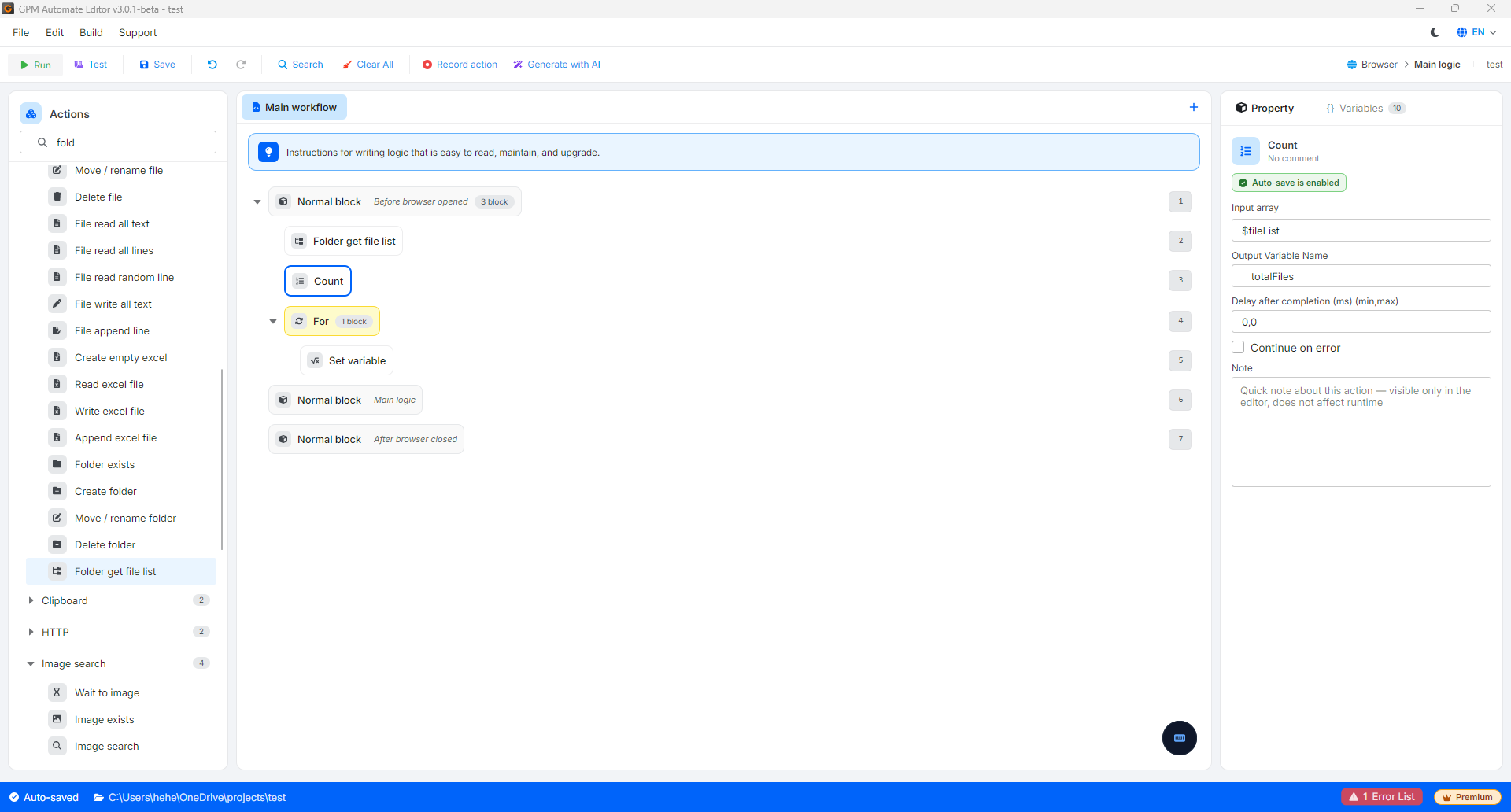
* Step 2: Use the action Count passing in the array `$fileList` just obtained, and name the output variable as `$totalFiles`.
After running, the variable `$totalFiles` will receive the value of `3`. You can use this result to run conditional command blocks (for example: If the folder has more than 0 files, then perform the action to upload images to Facebook/Website).
#### 3. Count the number of elements after splitting a string
When you have a long text string containing multiple pieces of information separated by special characters and want to know how many elements will be after splitting:
* How to do it: After using the action Split text to split this string based on the character `|`, you let the action Count process the split list. The returned count variable will then be `6`.
#### Practical example: Count the number of elements of a string after using Split text
Suppose you have a configuration file or a line of data containing account information formatted in a structure separated by the vertical bar `|` as follows:
```
thanhnguyen|Pass1234|2FAXYZ|103.83.77.15:9898
```
To count how many pieces of information this string has for the purpose of checking the validity of the account, the script will be configured in 2 steps:
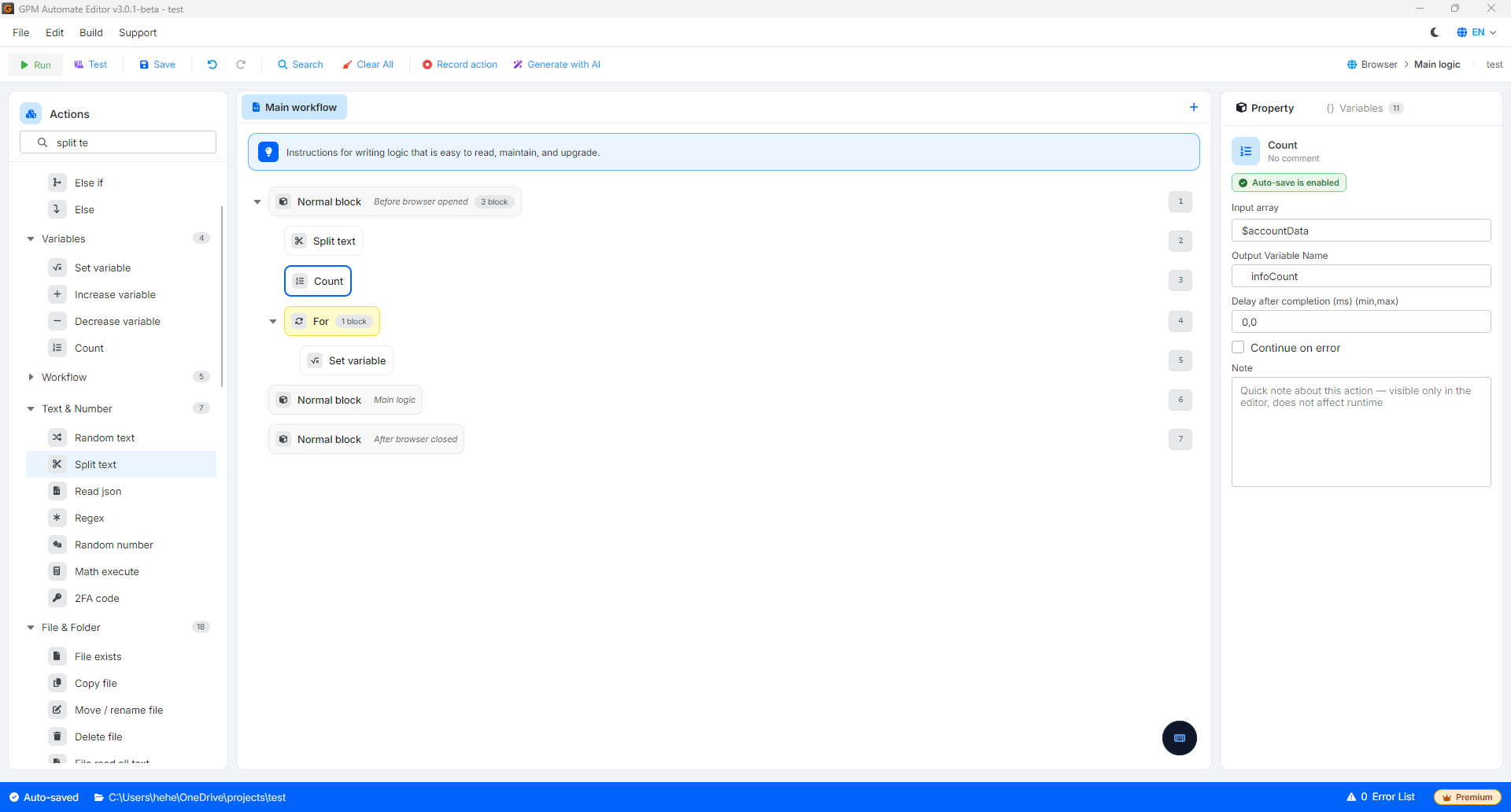
* Step 1: Use the action Split text to split the above string based on the separator character `|`. The returned result will be stored in an array named `$accountData`. At this point, the system will automatically separate the data into:
* `$accountData[0]` = `"thanhnguyen"` (Account)
* `$accountData[1]` = `"Pass1234"` (Password)
* `$accountData[2]` = `"2FAXYZ"` (2FA code)
* `$accountData[3]` = `"103.83.77.15:9898"` (Proxy)
* Step 2: Use the action Count passing in the array `$accountData` just split, and name the output variable as `$infoCount`.
After running, the variable `$infoCount` will receive the value of `4`. You can use this result in conjunction with the If command block to check (for example: If `$infoCount = 4` meaning the account has sufficient structural information, then proceed to run the login script, otherwise skip to avoid errors).
---
# Agent Instructions
This documentation is published with GitBook. GitBook is the documentation platform designed so that both humans and AI agents can read, navigate, and reason over technical content effectively. Learn more at gitbook.com.
## Querying This Documentation
If you need additional information that is not directly available in this page, you can query the documentation by asking a question.
Perform an HTTP GET request on the following URL with the `ask` and `goal` query parameters:
```
GET https://docs.gpmautomate.com/automate-en/action-guide/variables/count.md?ask=&goal=
```
`ask` is the immediate question: it should be specific, self-contained, and written in natural language.
`goal` is what the user is ultimately trying to achieve, the reason they need the answer. Sharing it helps GitBook give you a better, more relevant answer. A goal is most helpful when it describes the outcome the user wants rather than restating the question. For example, with `ask=how do I create an API token`, a goal like `automate deployments from our CI pipeline` lets GitBook tailor the answer to that use case.
The response will contain a direct answer to the question and relevant excerpts and sources from the documentation.
Use this mechanism when the answer is not explicitly present in the current page, you need clarification or additional context, or you want to retrieve related documentation sections.