> For the complete documentation index, see [llms.txt](https://docs.gpmautomate.com/llms.txt). Markdown versions of documentation pages are available by appending `.md` to page URLs; this page is available as [Markdown](https://docs.gpmautomate.com/automate-en/general-introduction/ai-workflow-generation-guide.md).
# 🛠️Gen AI Workflow feature guide (Creating scripts with AI)
The Gen AI Workflow feature allows you to initiate a complete automation script simply by describing it in natural language. In simple terms, it's like having AI browse the web for you — the AI configured in GPM Automate will automatically read content, analyze requirements, combine with a real web browsing Agent to fully analyze the page structure, and retrieve accurate XPath just like a real user before automatically generating actions to push into the workflow.
🎥 Watch the tutorial video: [Here](https://youtu.be/gsLU5H95fl8).
> Note: The Gen AI Workflow feature currently supports direct analysis on profiles in GPM Login when running in Live mode.
### ⚙️ Steps to Execute Gen AI Workflow
To start the process of creating an automation script with AI, follow these steps:
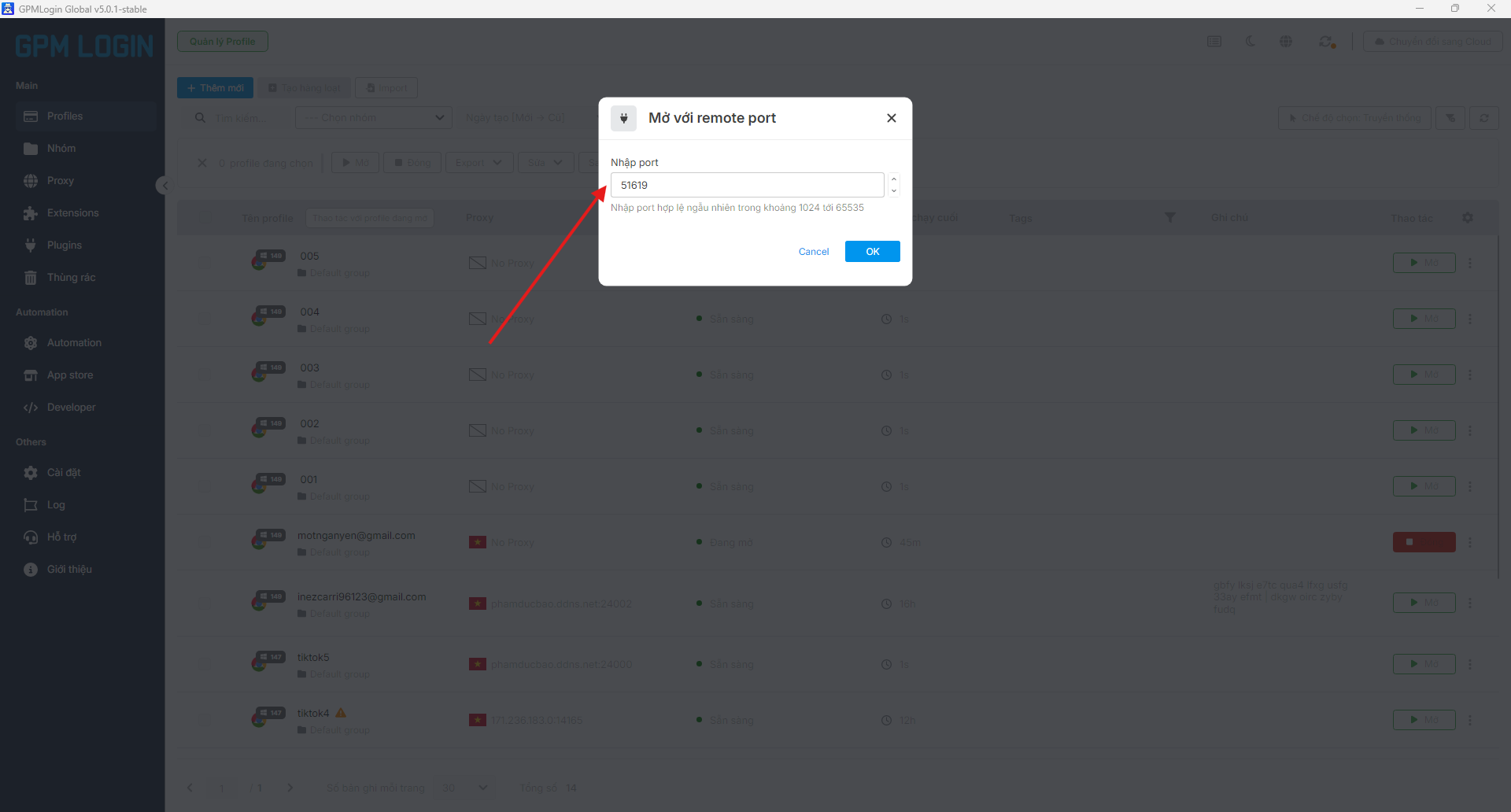
#### 1️⃣ Step 1: Configure the profile in GPM Login
* Open GPM Login.
* Find the profile you want to use for testing.
* Click on the three dots next to the profile name.
* Select Run with remote port to obtain the control port information.
> Explanation: Opening the remote port is like creating a "bridge" that allows AI and GPM Automate to directly control and access the open browser profile to browse the web and read the page structure in real-time.
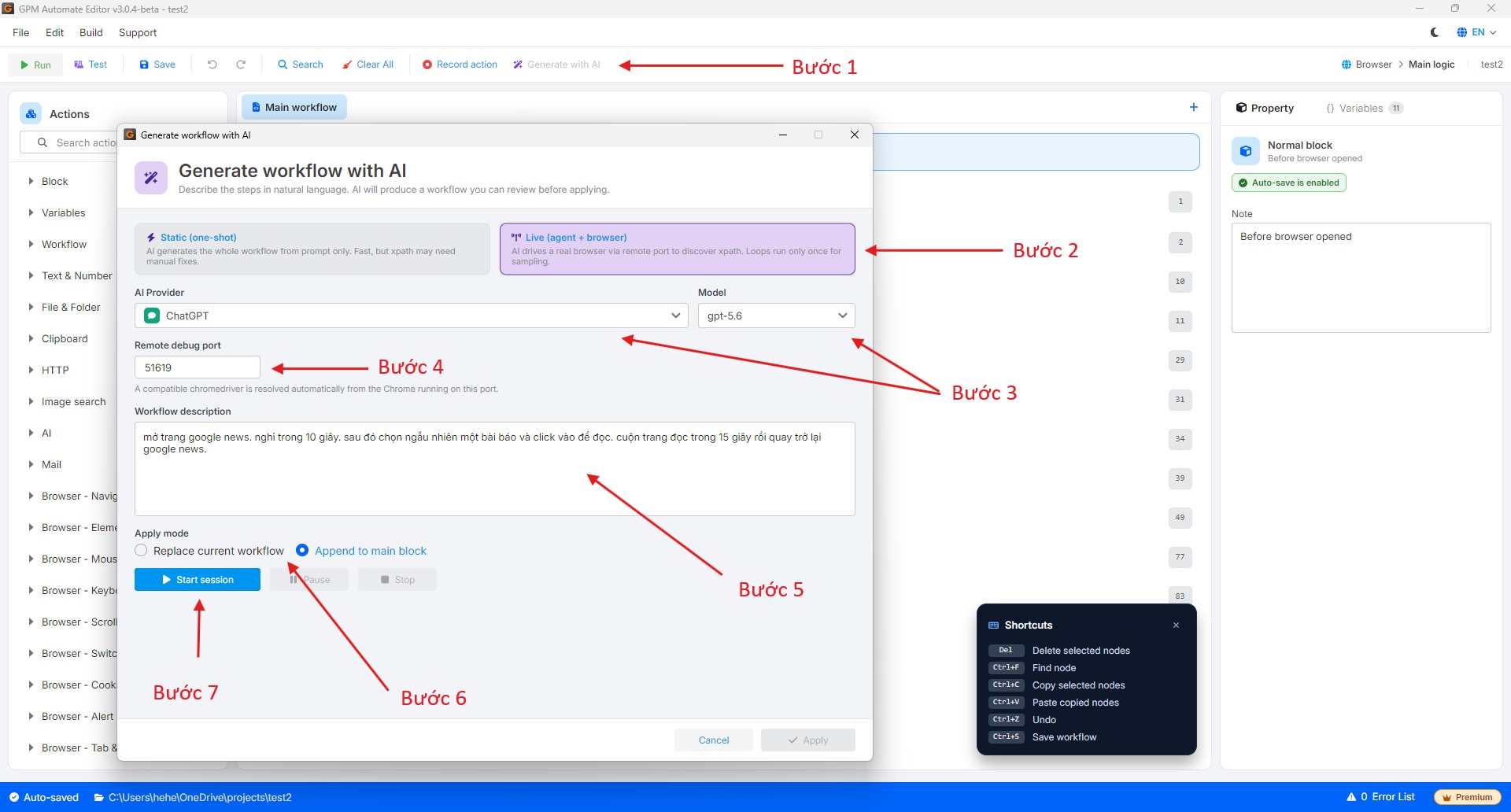
#### 2️⃣ Step 2: Set up in GPM Automate
* On the GPM Automate toolbar, select **Generate with AI**.
* The Gen AI configuration window will appear with the following parameters:
* **Remote debug port:** Paste the Port obtained from GPM Login in Step 1 into this field to connect to the profile.
* **Mode:**
* **Static:** Generates according to the script, AI imagines XPath without a web browsing Agent.
* **Live:** The Agent directly browses the web, reads the full page structure, and retrieves accurate XPath like a real person.
* **AI Provider:** Choose the AI provider (**ChatGPT/OpenAI**, **Claude**, **Gemini**, **DeepSeek**, or **Custom AI** that you have configured in the GPM Automate settings), then select the appropriate **Model**.
* **Workflow Description:** Enter the command/natural description of the script you want to create.
* **Apply Mode:**
* **Replace current workflow:** Replace the entire current script.
* **Append to main block:** Append new actions to the end of the main script.
* Click **Start session**, the browser will automatically open and execute the script analysis process.
#### 3️⃣ Step 3: Observe the results
* After the browser runs automatically and the system completes the Generate process, click **Apply** to push the newly created actions into the workflow.
* You can monitor the command blocks being inserted into the GPM Automate interface and proceed to test the script for adjustments if necessary.
---
# Agent Instructions
This documentation is published with GitBook. GitBook is the documentation platform designed so that both humans and AI agents can read, navigate, and reason over technical content effectively. Learn more at gitbook.com.
## Querying This Documentation
If you need additional information that is not directly available in this page, you can query the documentation by asking a question.
Perform an HTTP GET request on the following URL with the `ask` and `goal` query parameters:
```
GET https://docs.gpmautomate.com/automate-en/general-introduction/ai-workflow-generation-guide.md?ask=&goal=
```
`ask` is the immediate question: it should be specific, self-contained, and written in natural language.
`goal` is what the user is ultimately trying to achieve, the reason they need the answer. Sharing it helps GitBook give you a better, more relevant answer. A goal is most helpful when it describes the outcome the user wants rather than restating the question. For example, with `ask=how do I create an API token`, a goal like `automate deployments from our CI pipeline` lets GitBook tailor the answer to that use case.
The response will contain a direct answer to the question and relevant excerpts and sources from the documentation.
Use this mechanism when the answer is not explicitly present in the current page, you need clarification or additional context, or you want to retrieve related documentation sections.