> For the complete documentation index, see [llms.txt](https://docs.gpmautomate.com/llms.txt). Markdown versions of documentation pages are available by appending `.md` to page URLs; this page is available as [Markdown](https://docs.gpmautomate.com/automate-zh/action-shi-yong-zhi-nan/image-search/combined-example-for-image.md).
# Image 组合使用示例
要创建一个智能的自动化脚本,流畅地处理网页或软件界面(UI)上的实际场景,将这三个 action 按照严密的逻辑流程组合起来是最优的解决方案。
以下是关于通用技术参数的详细说明,以及为实际场景设置流程的步骤。
🎥 观看更多教学视频:[点击这里](https://youtu.be/xWu0g35YTGo)。
#### 需要掌握的核心配置参数:
* Image(样本图片):您从屏幕上截取的目标图片区域,作为系统进行比对的数据。
* Timeout(超时时间):系统查找图片的最长等待时间限制(仅适用于 *Wait to image*)。
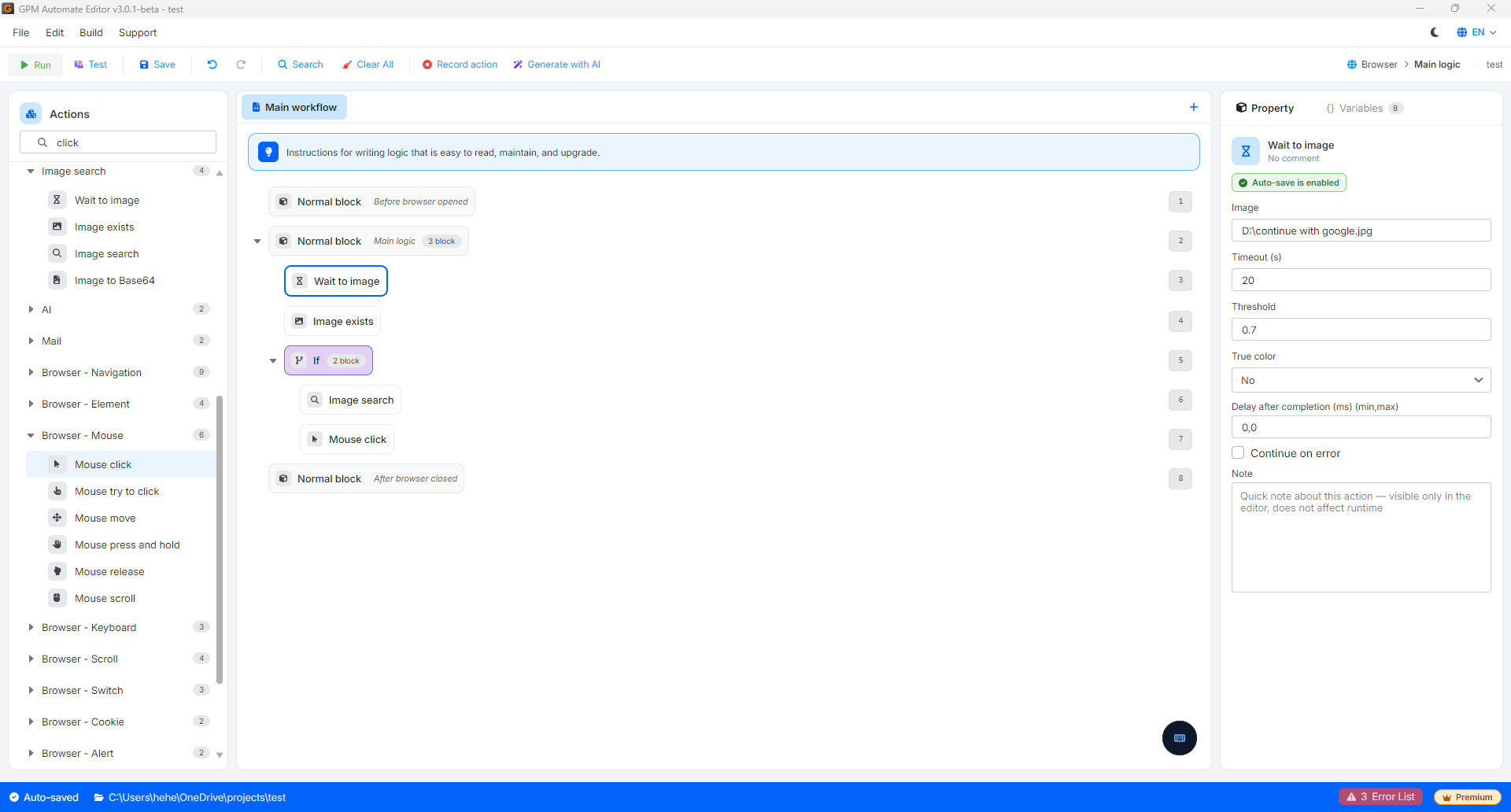
* Threshold(色差/容差):像素比对的精确比例(通常设置为 `0.7` 到 `0.95`)。数值越接近 `1`,要求实际图片与样本图片越绝对相似。您可以调整这个数值,测试直到合适为止。
* True color:强制系统必须精确比对原始色域的选项。如果关闭,系统会将图片转换为黑白(Grayscale)形式来识别形状,从而提高扫描速度,但会忽略颜色因素。
* Output variable(输出变量):根据所选的 action,用于保存逻辑值(`True`/`False`)或保存坐标点(`X`、`Y`)的变量。
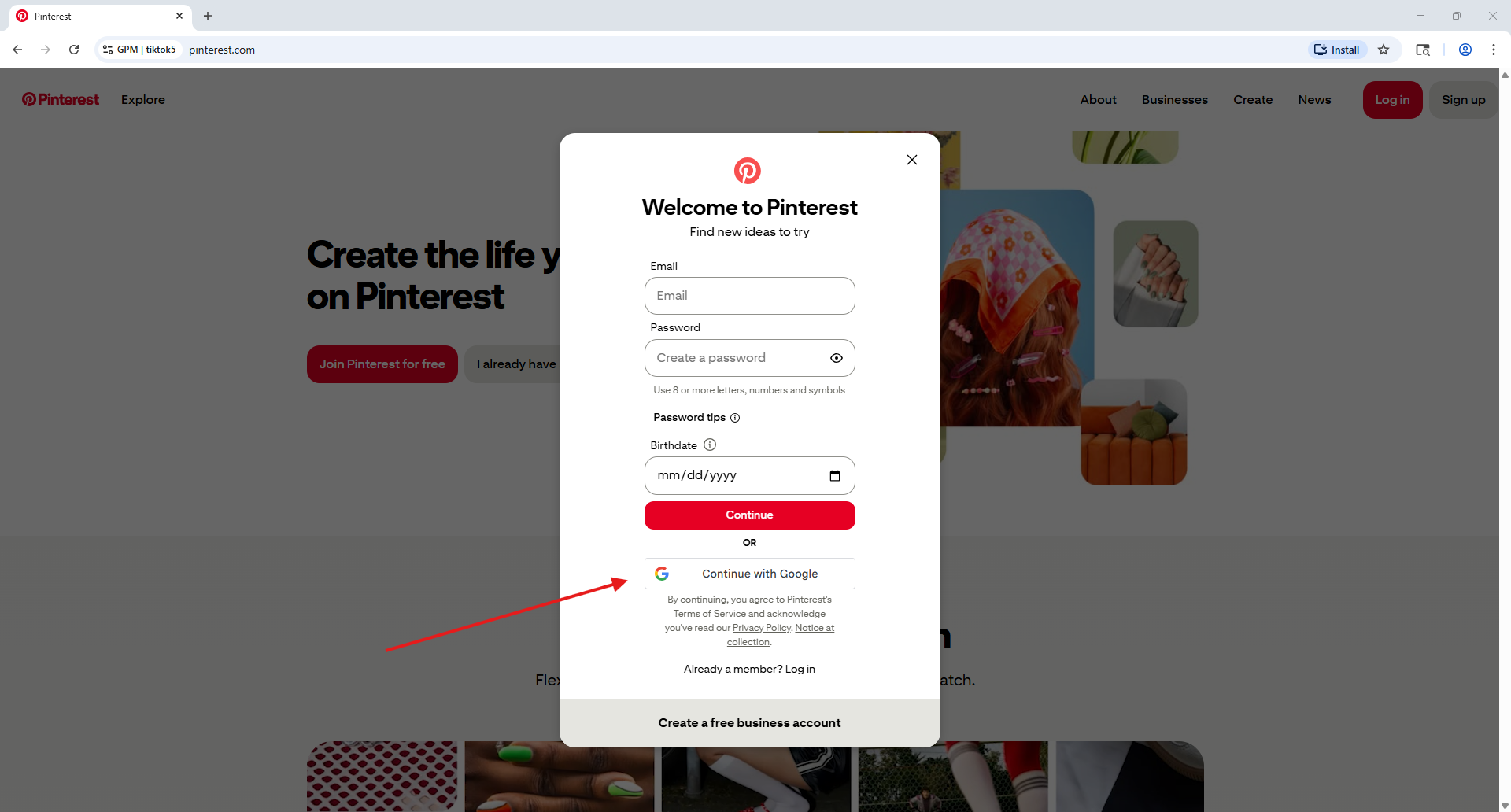
### 实际案例:在 Pinterest 上自动点击"Continue with Google"
**步骤 1:使用 Wait to image 同步页面加载流程**
在您点击 Pinterest 主页上的 *Sign up* 按钮后,注册表单需要一小段时间才能将数据加载到屏幕上。
* 配置方法:将样本图片(Image)对准标题文字或一个必定会出现在注册表单上的固定元素(Continue with Google 按钮)。将 Timeout 设置为 `10`(10 秒),并设置合适的 Threshold 级别(例如:`0.7`)。
* 运行逻辑:脚本将暂停以观察屏幕。一旦注册表单显示出来,系统立即触发下一步,无需浪费等待时间。
**🔹 步骤 2:使用 Image exists 检查按钮是否存在**
由于 Pinterest 可能会根据不同的 Profile 显示叠加的邮箱输入表单或其他导航提示,我们需要检查 Google 按钮是否确实出现在屏幕上。
* 配置方法:将样本图片对准 Google 的四色字母"G"图标或 Continue with Google 文字。配置输出变量以保存结果。
* 运行逻辑:系统在当时对屏幕进行一次快速扫描。如果 Google 按钮出现,输出变量将获得逻辑值 `True`(反之则为 `False`)。
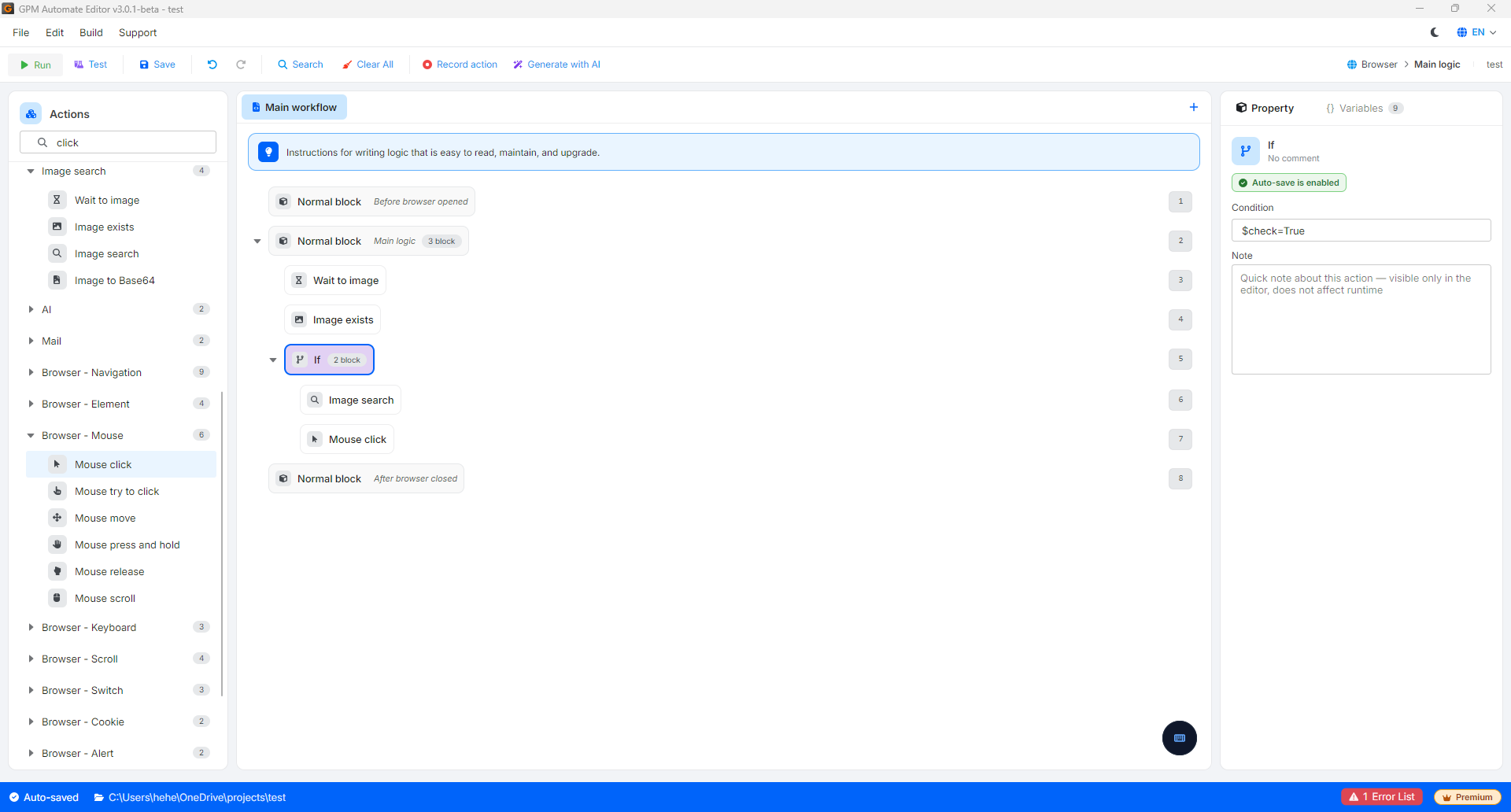
**🔹 步骤 3:使用 If 代码块筛选处理条件**
为了让脚本运行更加智能,避免出现点击失误的错误,我们将后续的交互步骤包裹在条件代码块中。
* 配置方法:添加 If 代码块并设置条件:检查步骤 2 中的结果变量是否返回 `True` 值(即表示 Google 按钮已在屏幕上准备就绪)。
**🔹 步骤 4:在 If 代码块内使用 Image search 查找精确位置**
位于 If 代码块内部,当条件满足时,系统开始追踪以获取按钮的坐标(因为注册表单的位置可能会根据每个 Profile 的屏幕分辨率灵活变动)。
* 配置方法:使用"Continue with Google"按钮的样本图片或字母"G"的标志。将 True color 设置为 `Yes`*(必须开启,才能准确识别 Google 特有的原始四色,避免与其他文字字符混淆)*。将保存坐标的输出变量设为 `pos`。
* 运行逻辑:系统会扫描并精确计算出屏幕上 Google 按钮中心点的位置(例如:`$pos = 720,540`)。
**🔹 步骤 5:使用 Mouse click 执行点击操作**
这是 If 代码块内完成整个处理流程的最后一步。
* 配置方法:选择 Mouse click action,在坐标设置栏中,直接将上一步获取到的变量传入对应栏位:`$pos`。
* 运行逻辑:系统上的鼠标将自动移动到已扫描到的 Google 按钮的精确像素位置,并执行点击命令,以流畅地穿透 Iframe 层继续登录流程。
---
# Agent Instructions
This documentation is published with GitBook. GitBook is the documentation platform designed so that both humans and AI agents can read, navigate, and reason over technical content effectively. Learn more at gitbook.com.
## Querying This Documentation
If you need additional information that is not directly available in this page, you can query the documentation by asking a question.
Perform an HTTP GET request on the following URL with the `ask` and `goal` query parameters:
```
GET https://docs.gpmautomate.com/automate-zh/action-shi-yong-zhi-nan/image-search/combined-example-for-image.md?ask=&goal=
```
`ask` is the immediate question: it should be specific, self-contained, and written in natural language.
`goal` is what the user is ultimately trying to achieve, the reason they need the answer. Sharing it helps GitBook give you a better, more relevant answer. A goal is most helpful when it describes the outcome the user wants rather than restating the question. For example, with `ask=how do I create an API token`, a goal like `automate deployments from our CI pipeline` lets GitBook tailor the answer to that use case.
The response will contain a direct answer to the question and relevant excerpts and sources from the documentation.
Use this mechanism when the answer is not explicitly present in the current page, you need clarification or additional context, or you want to retrieve related documentation sections.