> For the complete documentation index, see [llms.txt](https://docs.gpmautomate.com/llms.txt). Markdown versions of documentation pages are available by appending `.md` to page URLs; this page is available as [Markdown](https://docs.gpmautomate.com/automate-zh/gai-shu/setup-configuration-to-run-script/6-profile-choose-browser-profile-to-run-tool.md).
# 6. Profile(选择用于运行工具的浏览器 Profile)
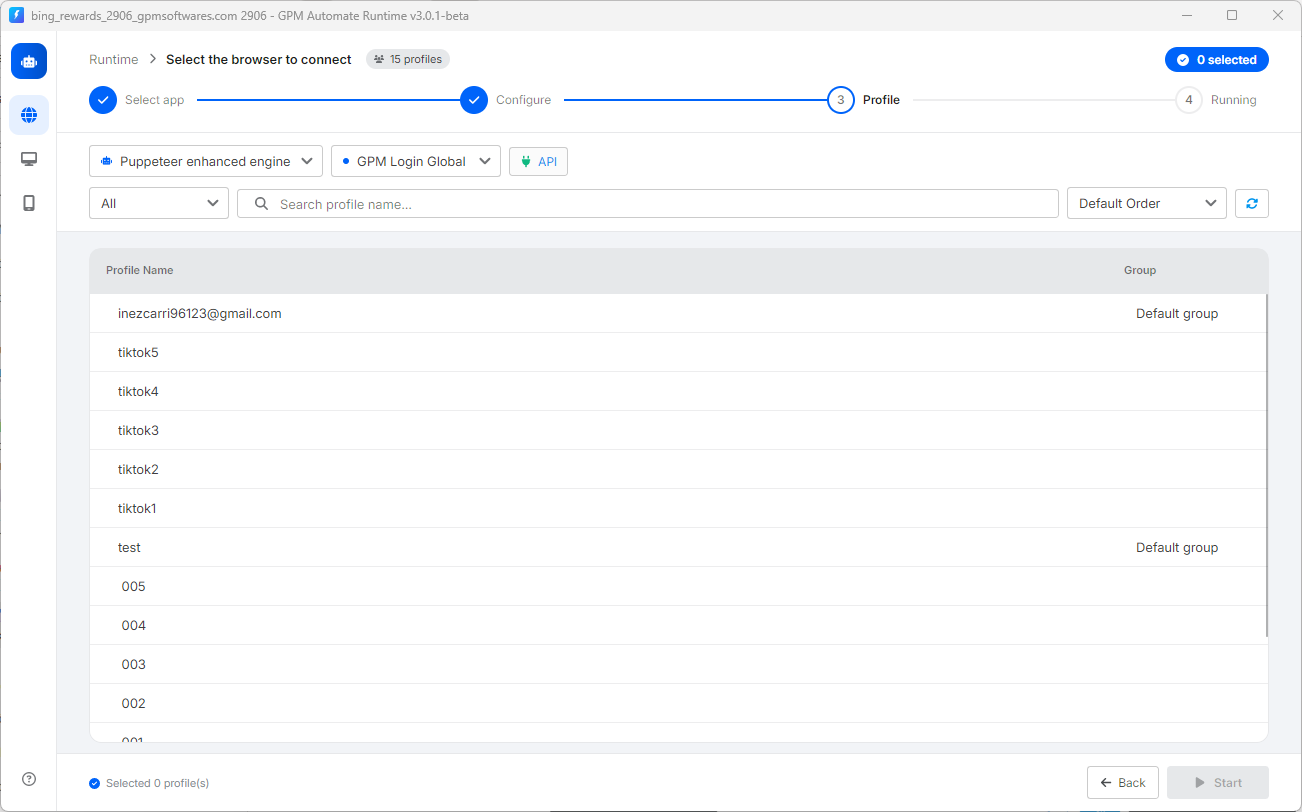
在上一步完成配置和计划的设置后,点击 `Continue` 进入第 3 步,即选择要应用脚本的浏览器 Profile(界面如下图所示)。此处的操作包括:
**🤖 1. 选择控制技术和浏览器应用**
查看 Profile 列表上方的菜单栏(如下图),您需要设置:
* 核心技术:根据您的脚本希望使用的技术类型,在 Puppeteer enhanced engine 或 Selenium 之间进行选择,以控制浏览器。
* 浏览器应用:选择您用于管理账号的浏览器类型,例如 GPM Login Global、旧版 GPM Login,或 GoLogin……
* 连接配置:直接点击旁边的 🔌 API 按钮,设置连接到您的 antidetect browser 软件的端口(Port)和路径。
**📁 2. 搜索和筛选 Profile 分组**
* 选择分组(Group):最左侧的框(当前显示 `All`)可帮助您按各个独立的 Profile 分组快速筛选列表,便于管理。
* 快速搜索:在 `Search profile name...` 框中输入账号名称,即可精确找到需要运行的 Profile,而不必手动滚动鼠标查找。
**🖱️ 3. 快速同时选择多个 Profile 的方法**
要选择需要运行的 Profile,您可以应用以下极快速的操作技巧:
* 手动选择:直接点击每一行 Profile。
* 鼠标拖选:按住鼠标左键并拖动经过各行,以批量选中相邻的多个 Profile。
* 使用 Shift 键:点击选择第一个 Profile,按住 `Shift` 键后再点击选择最后一个 Profile,即可选中中间的整段列表。
* 使用 Ctrl 键:按住 `Ctrl` 键后依次点击分散不相邻的 Profile,以单独选择它们。
* 全选(Ctrl + A):点击列表区域后按下组合键 `Ctrl + A`,即可选中当前显示的所有 Profile。
> 💡 自动筛选小提示:如果在 Excel 设置步骤(第 2 项)中您已勾选 *Map according to the profile name in column A* 功能,系统将自动筛选,仅保留名称与您 Excel 文件 A 列数据完全匹配的 Profile。
选择完 Profile 后,右下角的 ▶️ Start 按钮将会亮起。您只需点击它,工具即可正式自动运行。
---
# Agent Instructions
This documentation is published with GitBook. GitBook is the documentation platform designed so that both humans and AI agents can read, navigate, and reason over technical content effectively. Learn more at gitbook.com.
## Querying This Documentation
If you need additional information that is not directly available in this page, you can query the documentation dynamically by asking a question.
Perform an HTTP GET request on the current page URL with the `ask` query parameter, and the optional `goal` query parameter:
```
GET https://docs.gpmautomate.com/automate-zh/gai-shu/setup-configuration-to-run-script/6-profile-choose-browser-profile-to-run-tool.md?ask=&goal=
```
`ask` is the immediate question: it should be specific, self-contained, and written in natural language.
`goal` is optional and describes the broader end goal you are ultimately trying to accomplish on behalf of the user. GitBook uses it to tailor the answer towards what is most useful for that goal.
The response will contain a direct answer to the question and relevant excerpts and sources from the documentation.
Use this mechanism when the answer is not explicitly present in the current page, you need clarification or additional context, or you want to retrieve related documentation sections.